

User Groups
What's on this page
About User Groups
As a Brand Administrator, you can use groups to allow 2 or more users to share projects, graphics, files, and messages in libraries. Users within groups can also share contact lists in their Contacts page. Groups can include everyone in your organization, everyone in a specific division, or only specific users that you manually select.
Groups administration can only be accessed by Brand and Division Administrators in the Admin page.
Qtip: Once you create a group, a group library will automatically be created. If you’ve been newly added to a group, you may need to log out and back in to your account before you see the group library.

Qtip: Users can be added to multiple groups, and will see all the groups they are a part of within their library and Contacts page.
Creating New Groups
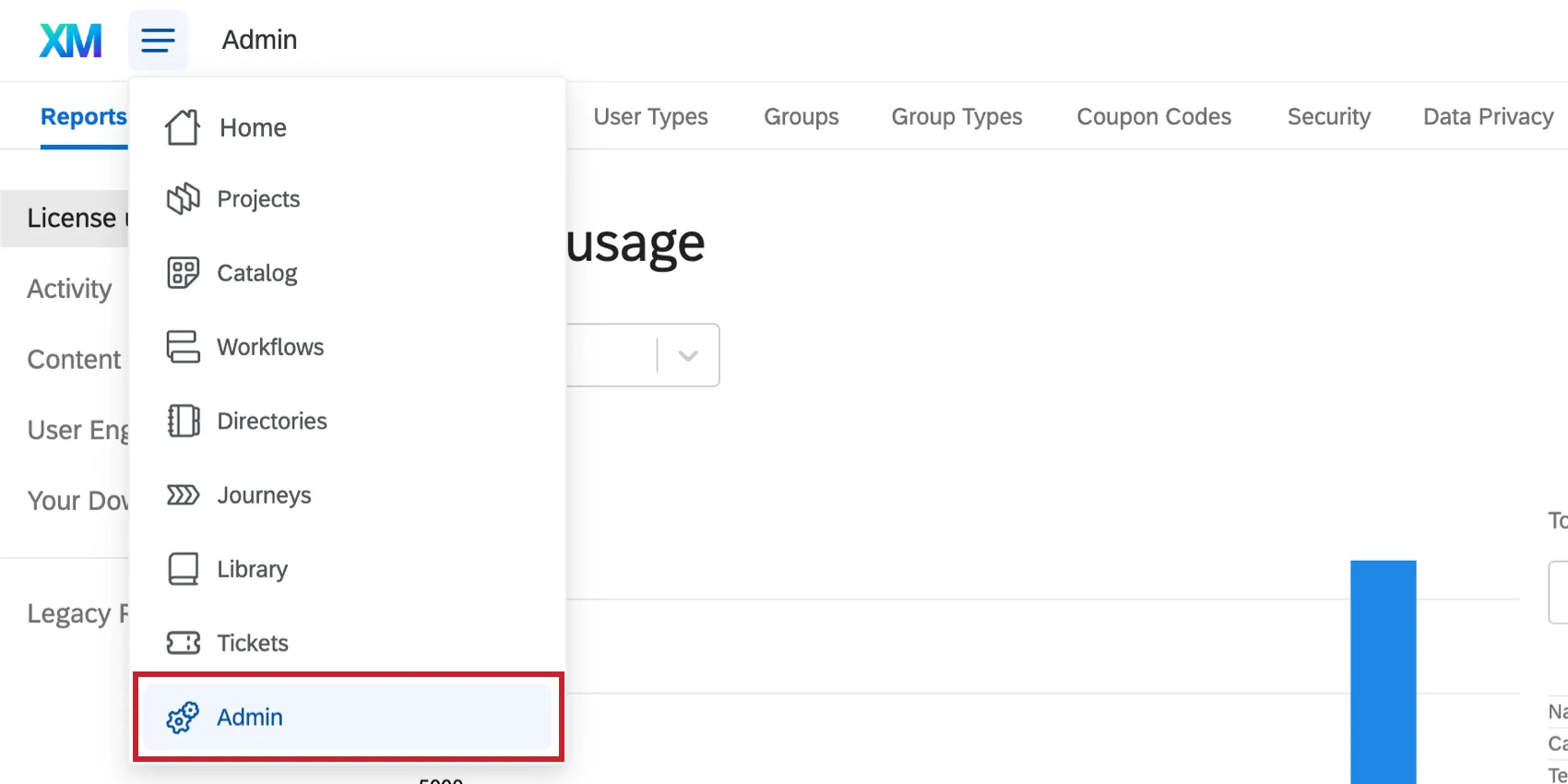
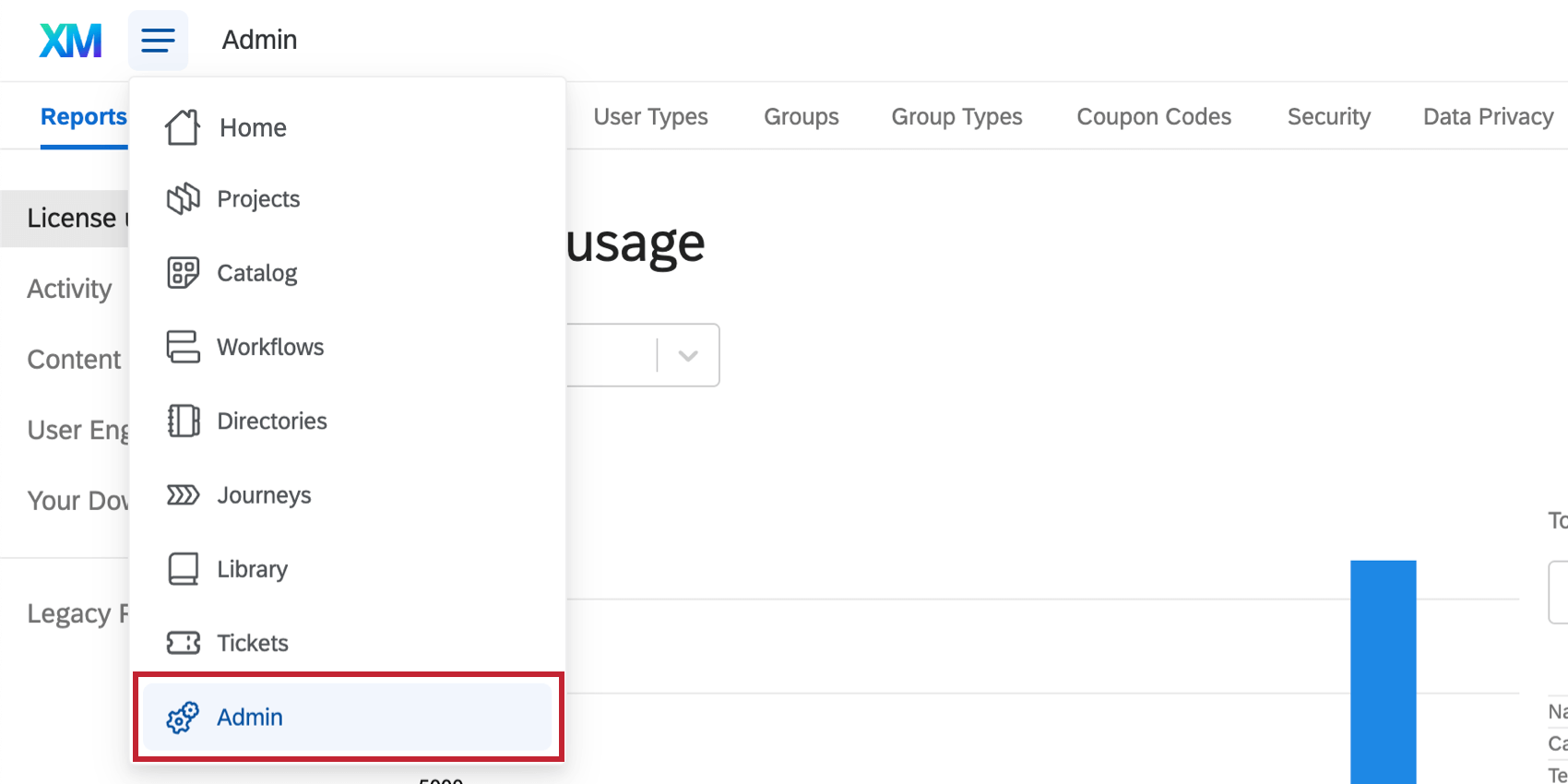
Navigate to the Admin page.
Select Groups.
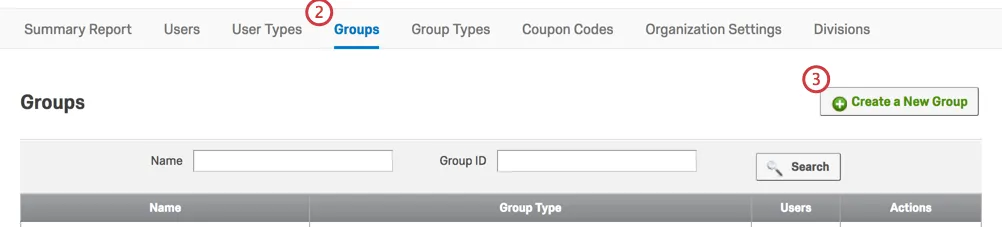
Click Create a New Group.
Enter the Group Name.
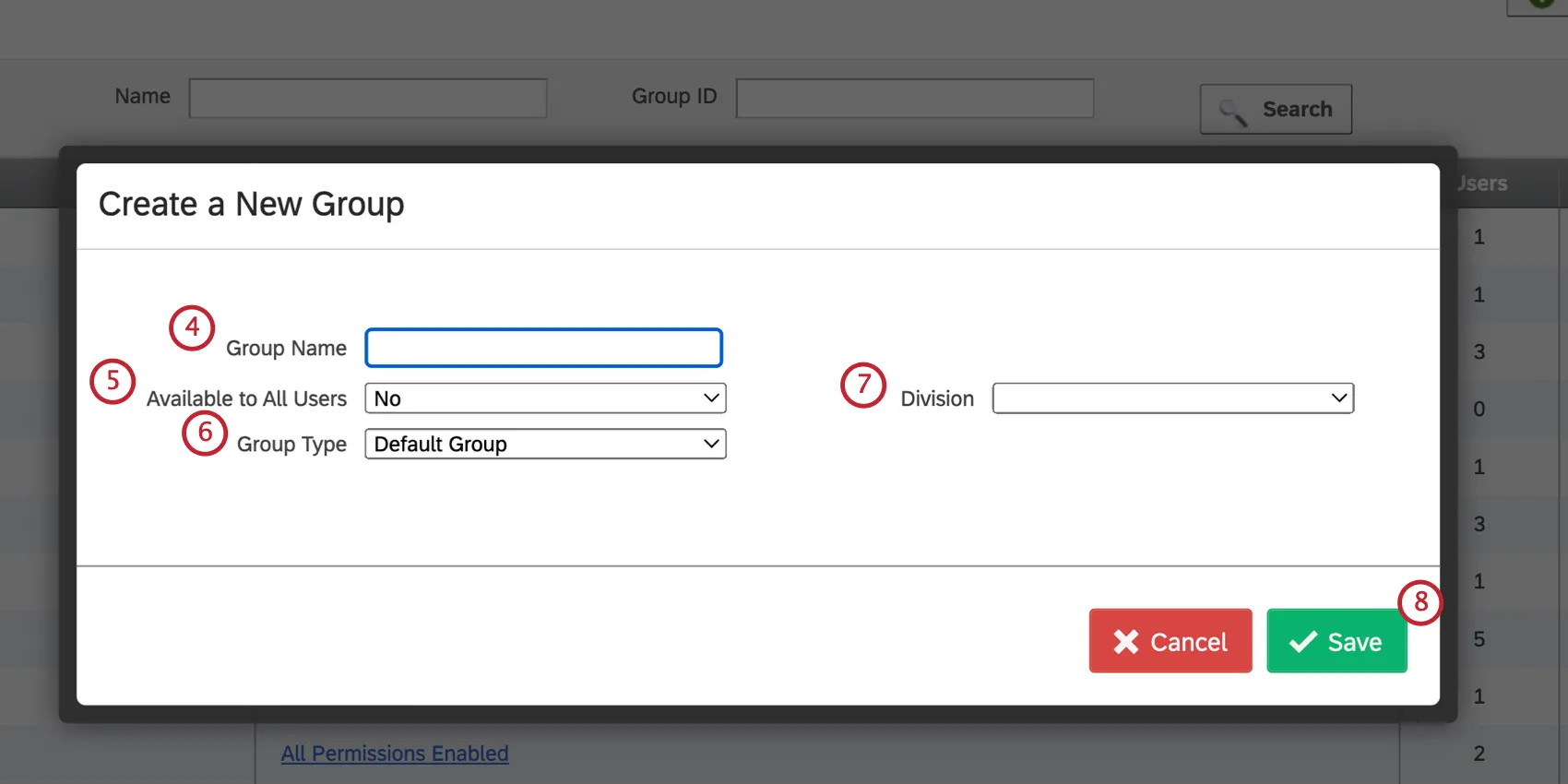
Qtip: Your group name should not contain any special characters – this includes characters that are not numbers or the English alphabet.
Set who the group is available to.
Qtip: For this brand and For this division mean that all users in your organization or specified Division, respectively, will automatically be able to access the group content. No means an administrator will need to manually add specific individuals to the group.
Qtip: The Available to All Users permission also applies to Project Approval settings.
- If a group has the Available to All Users permission set to For this brand, and this group is selected as the Approver group, then all users in the brand will appear in the Select approver list when publishing a survey.
- If a group has the Available to All Users permission set to For this brand, and this group is selected as the Survey owner group, then all users in the brand will need approval before publishing a survey.
- In contrast, if a group has the Available to All Users permission set to No, then only users in this group will appear as approvers or need their surveys approved.
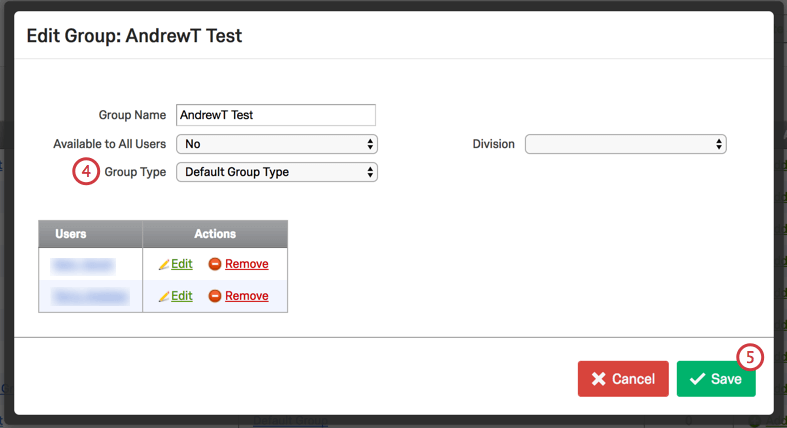
Select the Group Type.
Qtip: The group type determines what group members are allowed to do with content owned by the group. In most cases, you can just use the default group type. If you’d like to restrict the group’s permissions, you can create a new group type.
Select a Division.
Click Save.
Manually Adding Users to a Group
If you haven’t made your group available to all users in your brand or a specific division, you will need to add users manually.
Qtip: If you have made your group brand- or division-wide but want specific users to have different permissions from general group members, you’ll need to add them manually as well. For information on setting different permissions for specific users, view Giving a User Additional Group Permissions below.
To add users to a Group
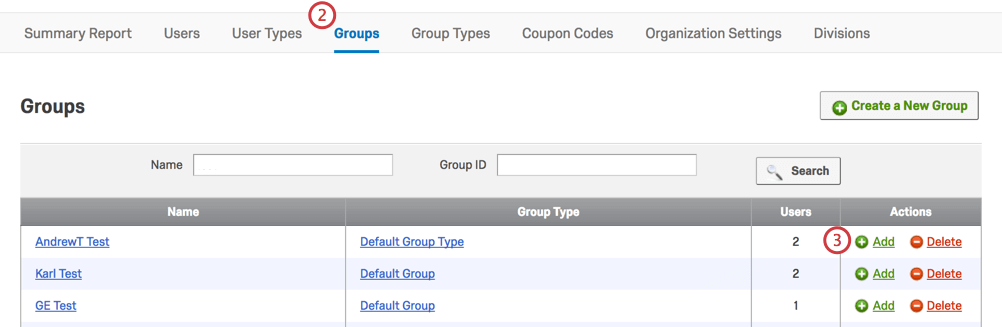
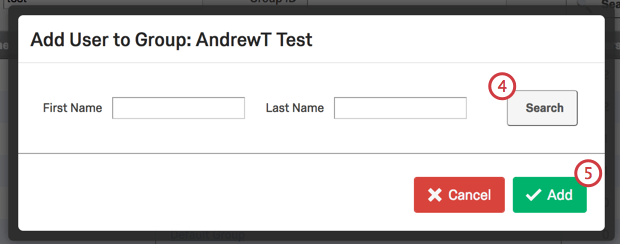
Qtip: You can select multiple users by holding Ctrl or Cmd when you click. To select 2 users and everyone in between, hold Shift and click the first and last user.
Giving a User Additional Group Permissions
Brand Administrators can edit the user’s group access permissions. This is useful if you want to give special access for a user to add and modify group content beyond that given to the other group members.
Example: You can allow only the head researcher to add surveys to the group library, whereas everyone else can just use surveys already there.

To modify a Group member’s permissions
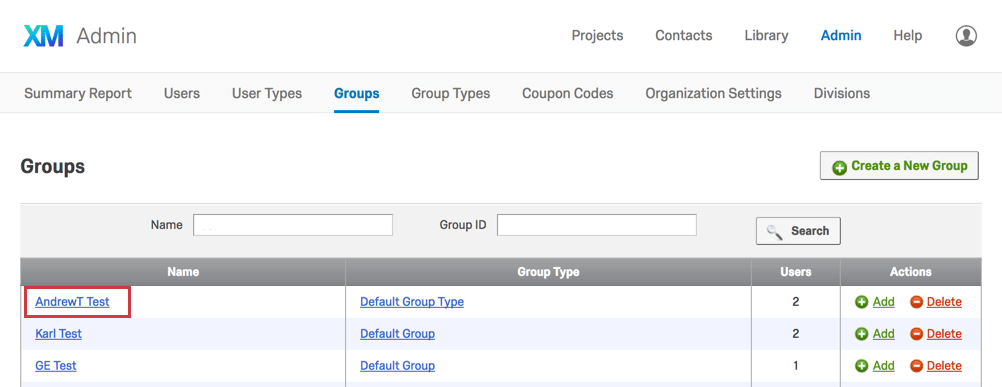
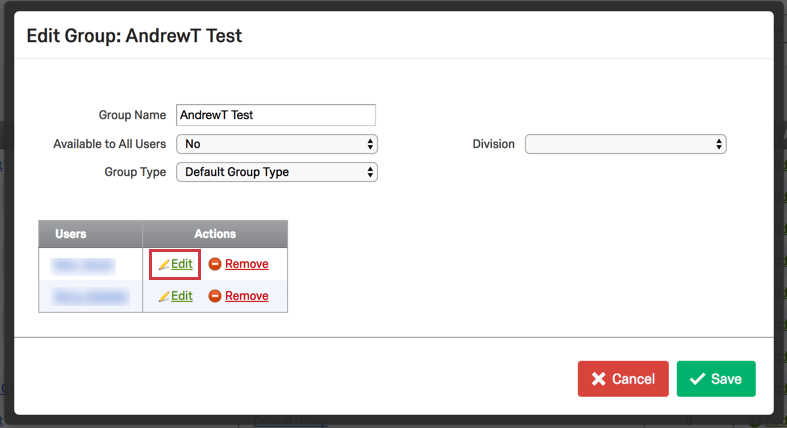
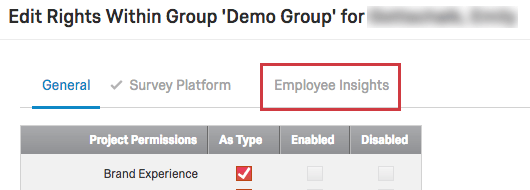
Qtip: When a user is added manually to a group, the permissions selected will determine what the user is allowed to do with content owned by the group. These permissions will override the group type permissions for that user.
Group Types
Group types, similar to user types, are sets of permissions that determine what a user is allowed to do with content owned by a group. The group type permissions will apply to all group members, unless otherwise specified for an individual member.
To create a new Group Type
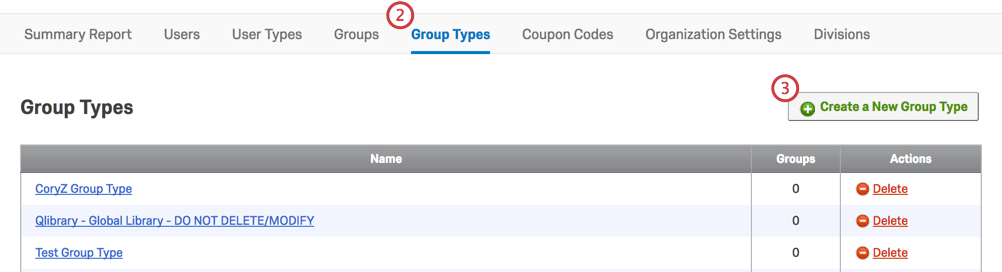
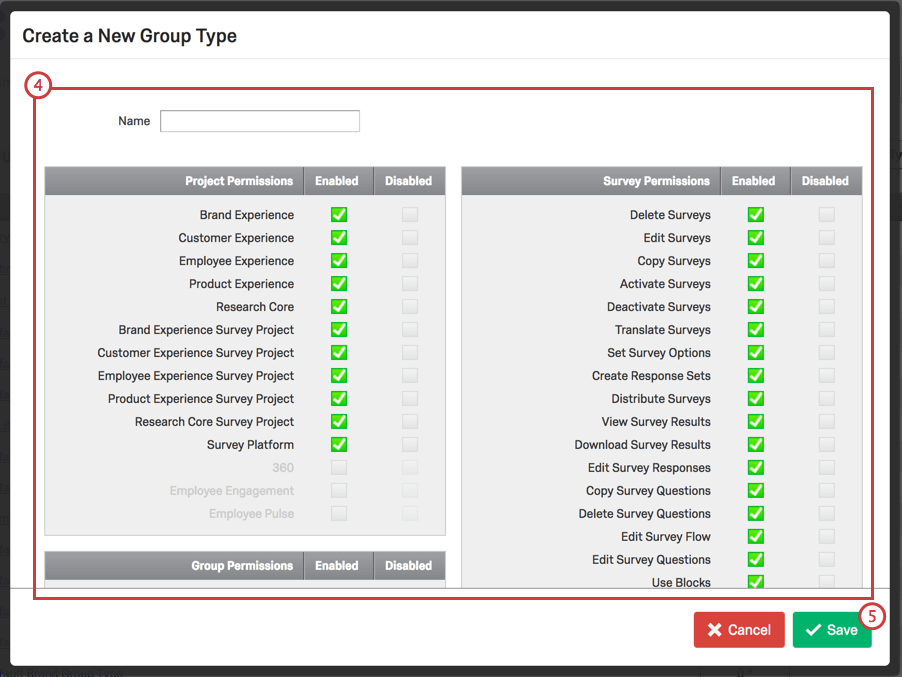
Once saved, your group type will now be in your list of available group types. This list also includes all default group types.
To apply a Group Type
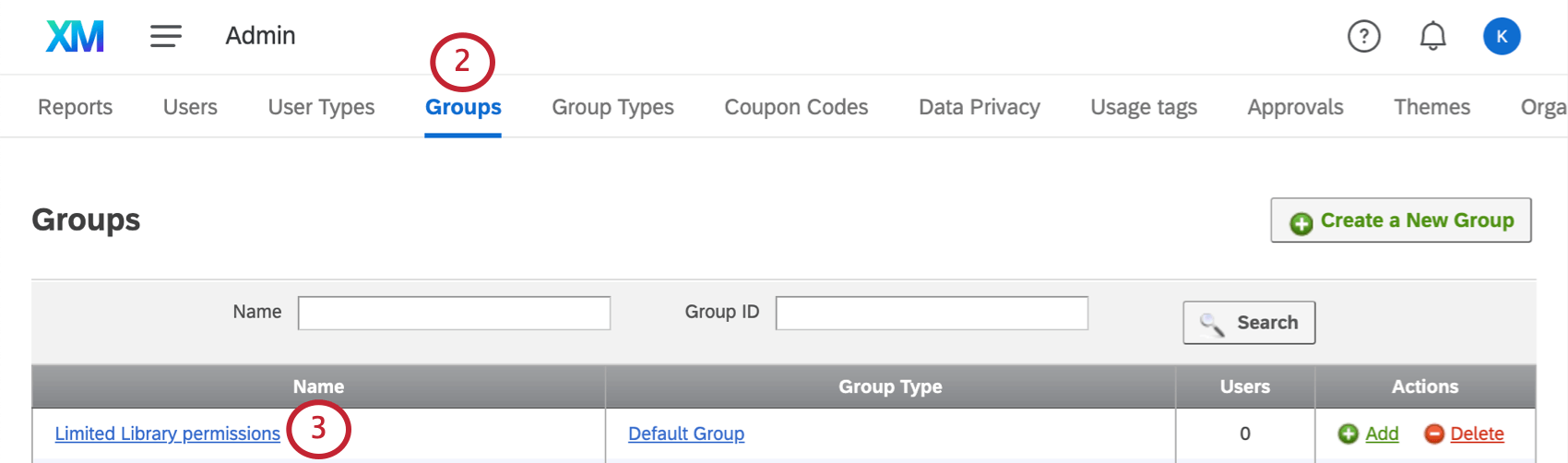
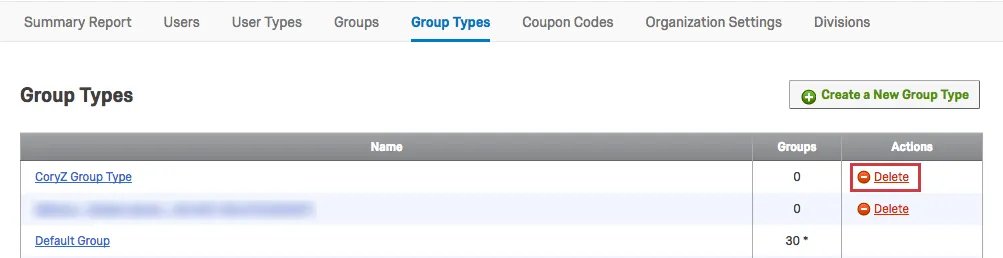
Deleting Groups or Group Types
To delete a group or group type, click Delete in the Actions column for the specific one you would like removed.
Using User Groups
To learn how to share a survey with a group, follow the steps on the Sharing a Project support page.
You can also copy surveys, graphics, files, and messages to group libraries. You can find these instructions on the Library page.
To find instructions on how to share a contact list with a group, navigate to the Sharing Lists section of our Searching, Sorting, & Organizing Mailing Lists & Samples page.
Creating an Organization Wide Library
It’s often useful to create an organization wide library for all of your Qualtrics users to share. Here, you can store assets for your users to use when building surveys. When setting up your organization wide library, you can limit which users can upload new content, while still giving all users access to the content in the library.
Qtip: To create an organization wide library, you must be a Brand Administrator.
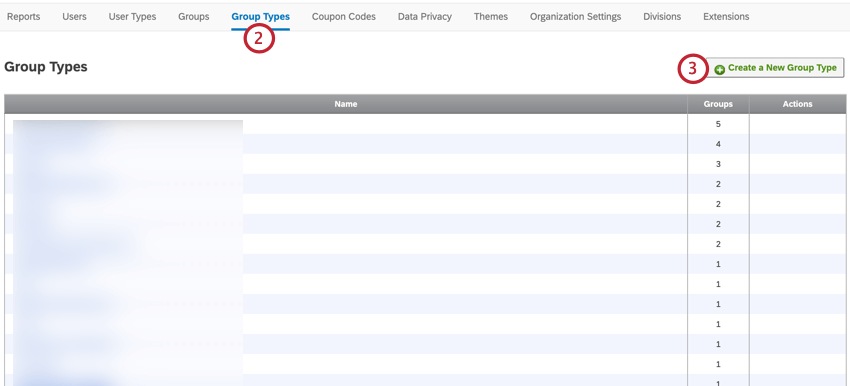
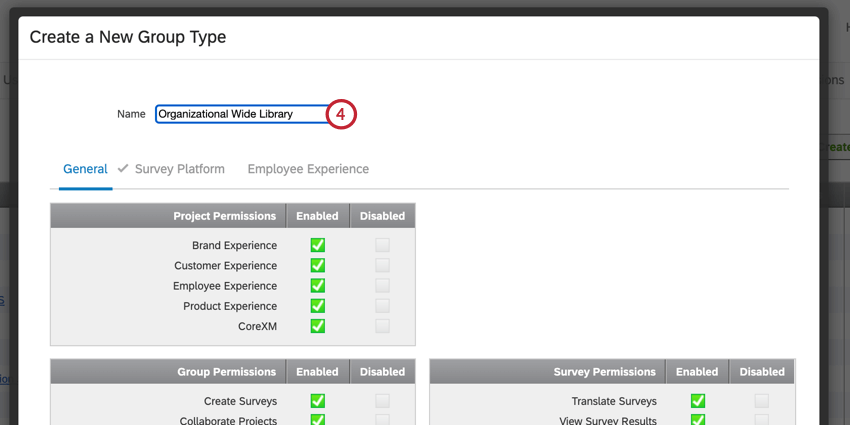
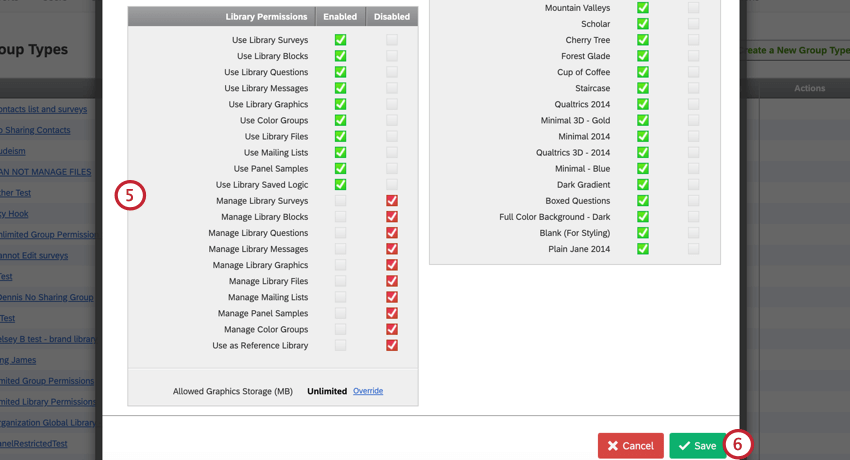
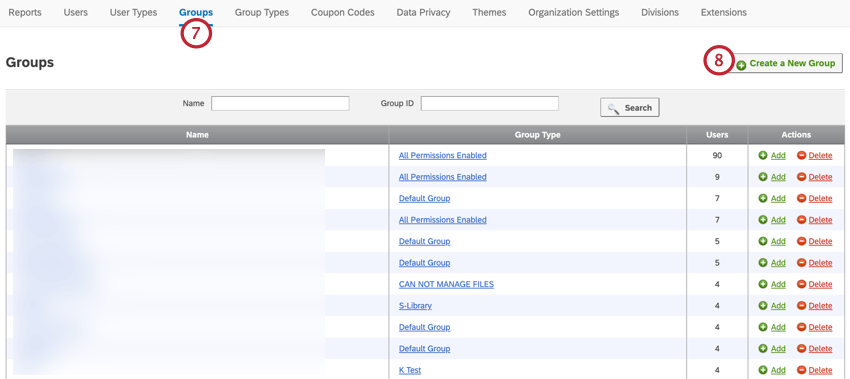
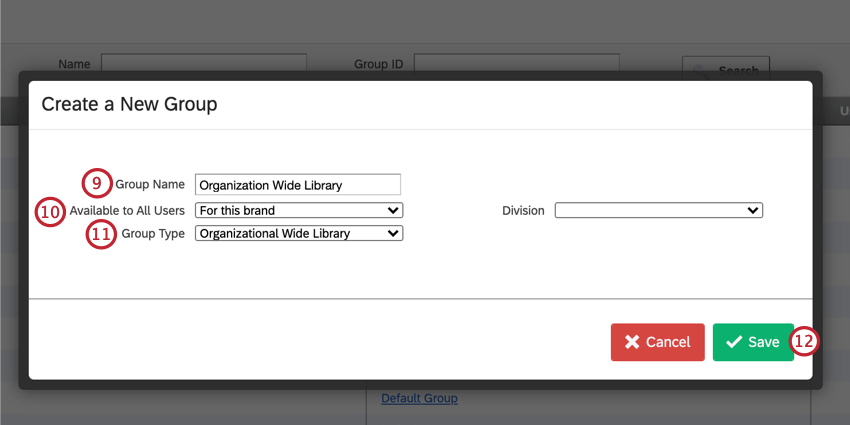
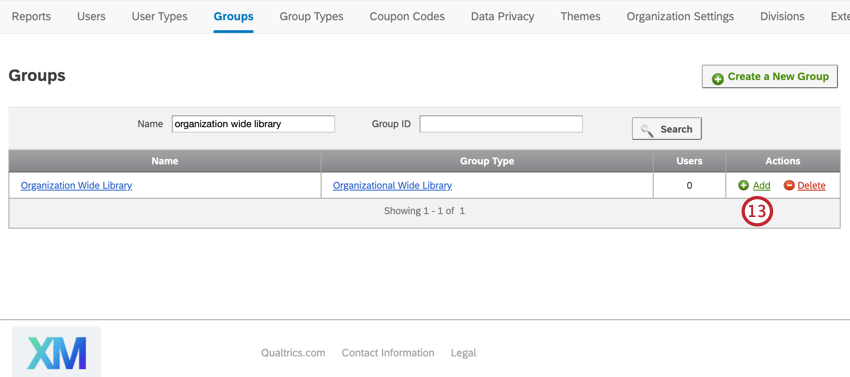
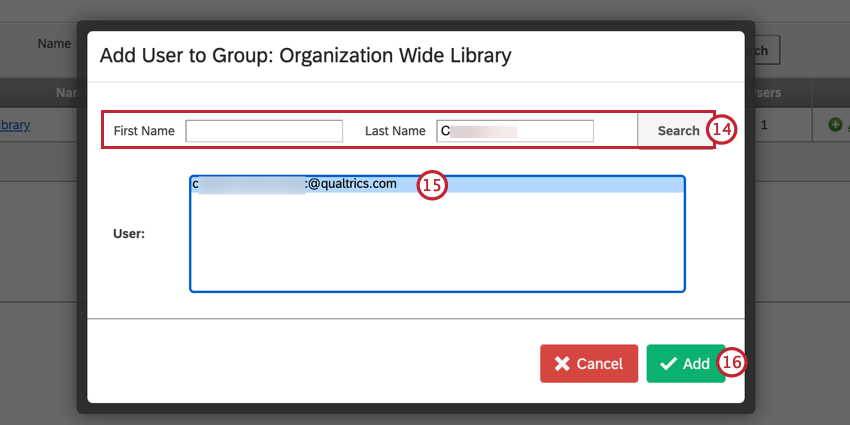
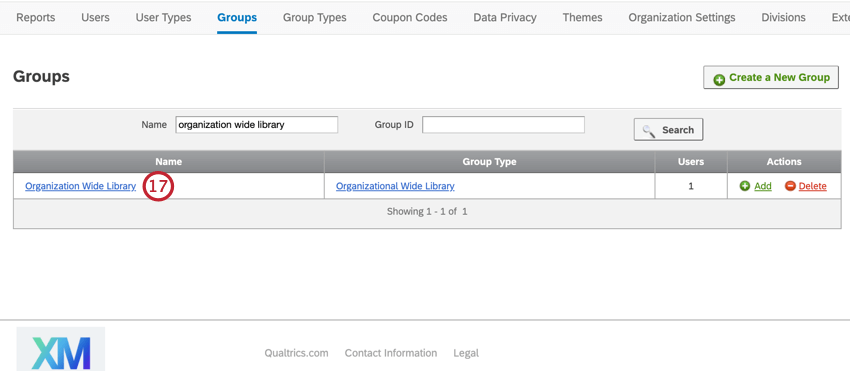
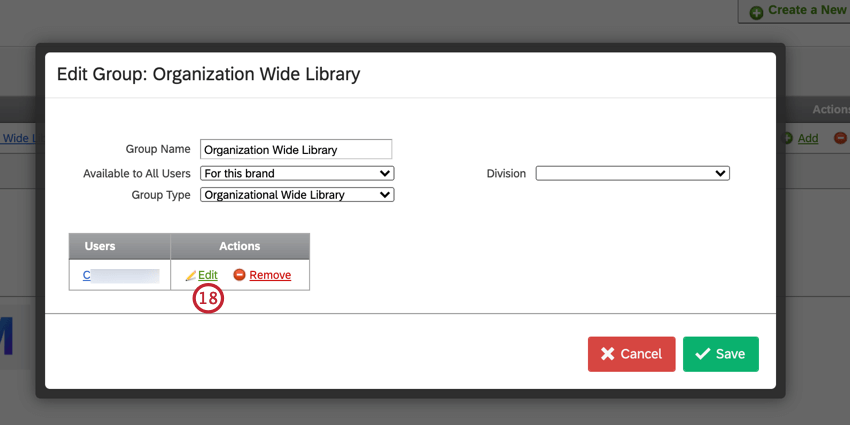
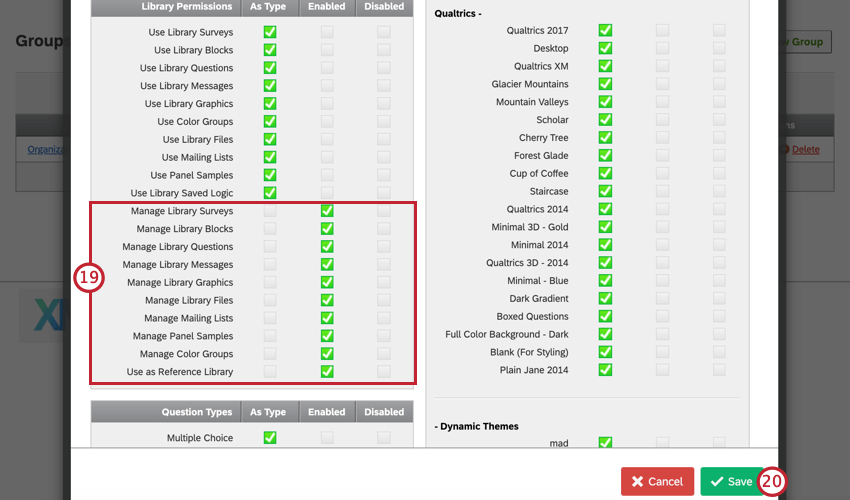
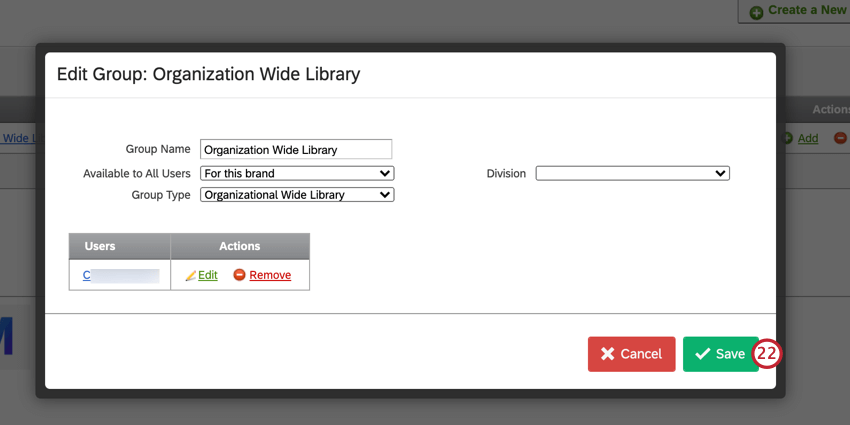
With the above setup, the group library is available to everyone in your organization, but only a limited set of users can actually upload content to the library. However, any user in your license can make use of the content uploaded to the library.
Best Practices
Some examples of practical user groups are:
- Instances where you would like users to share projects, graphics, files, and messages in libraries
- Create an organization wide library for collaboration across all of your users
- Organization wide libraries are excellent for certain applications; however, having groups that are specialized for various teams prevents everyone from seeing everything & can allow for a more structured & organized program
When building groups, keep in mind these important considerations:
- Groups are not intended to be used for user permission control outside the scope of a given project/collaboration effort, for that user types would be recommended
- If everyone is leveraging the global library for all tasks/storage purposes it can become cluttered and difficult to navigate
FAQs
What does this permission mean?
What does this permission mean?
Once you're on the User, Group, & Division Permissions page, perform a page search to quickly find the permission you're interested in. To perform a page search, press Cmd + F on Mac or Ctrl +F on PC.
I noticed a specific permission is grayed out for a user; why can’t I give this user that specific permission?
I noticed a specific permission is grayed out for a user; why can’t I give this user that specific permission?
What is the difference between a Group and a Division?
What is the difference between a Group and a Division?
How do I edit a user?
How do I edit a user?
For more information, visit the Managing Existing User Accounts section of the Creating and Managing Users support page.
To edit users, you must be a Brand Administrator. Reach out to your Brand Administrator if you need assistance.
How do I transfer ownership of a survey from one user to another?
How do I transfer ownership of a survey from one user to another?
If you would like to transfer only a specific survey between accounts, click on the username of the survey owner and select View Account Use Info. This will allow you to find the survey you would like to transfer; select Change Owner on the right side of the survey.
For more information, visit the Changing Project Ownership section of the Creating and Managing Users support page.
To transfer surveys between accounts, you must be a Brand Administrator. Reach out to your Brand Administrator if you need assistance.
Why isn't a user showing up when I try to manually add them to a group?
Why isn't a user showing up when I try to manually add them to a group?
That's great! Thank you for your feedback!
Thank you for your feedback!